July 10, 2026
TutorialHow to Add an Email Signature in Gmail - Clear Steps & Pro Tips
A quick guide to adding an HTML signature to Gmail with ProSignature. Includes default settings, reply options, and tips for images and links.
- After finishing your signature, click “Export”.

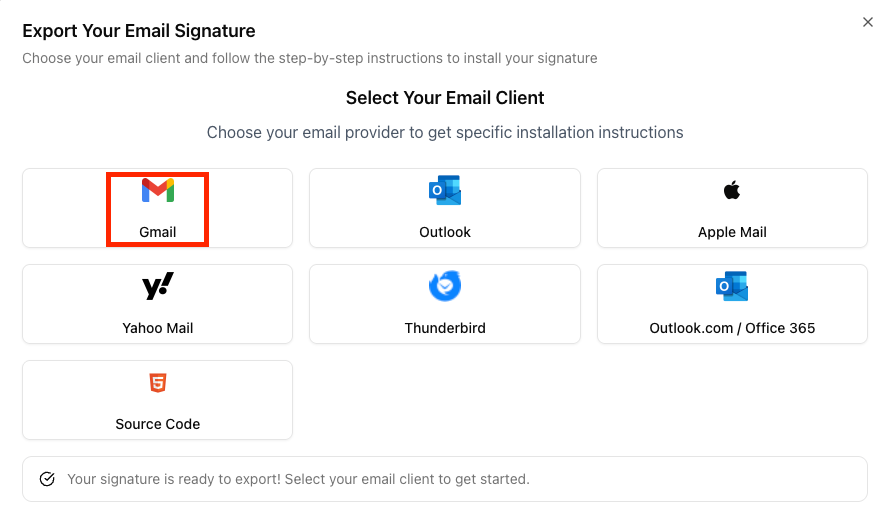
2. In the modal, choose “Gmail”.
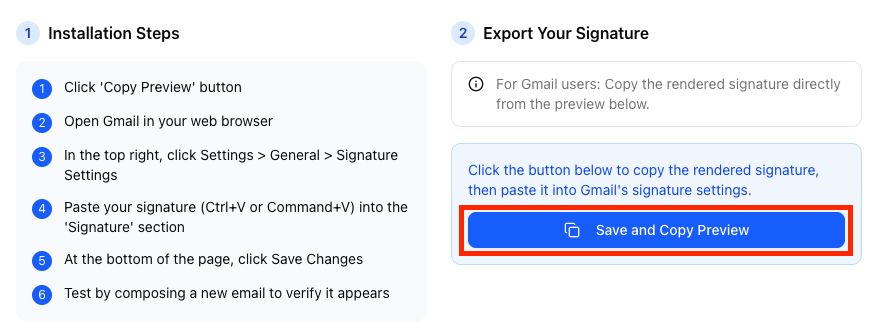
3. Click “Save & Copy Preview”.
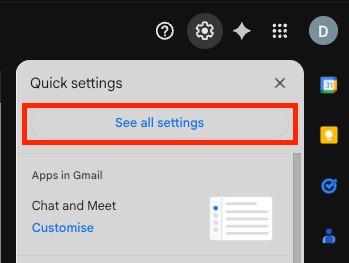
4. Open Gmail (web). In the top-right, click the gear icon, then “See all settings”.
5. On the settings page, scroll down and click “Create new”.
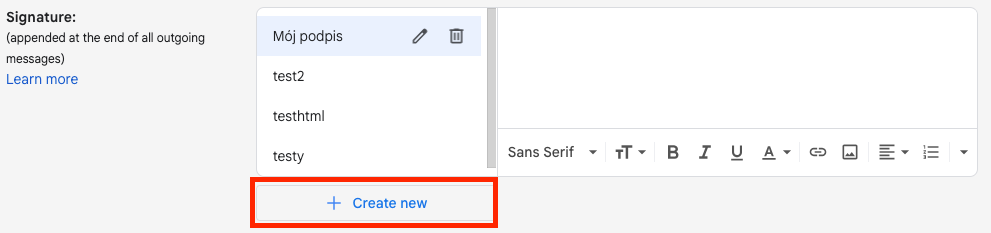
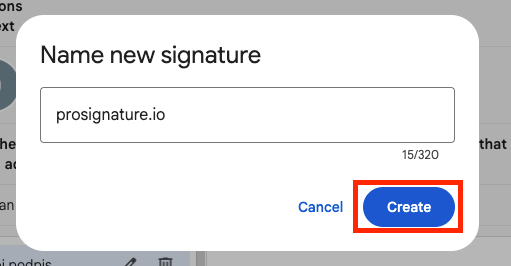
6. Enter a name for your signature and click “Create”.
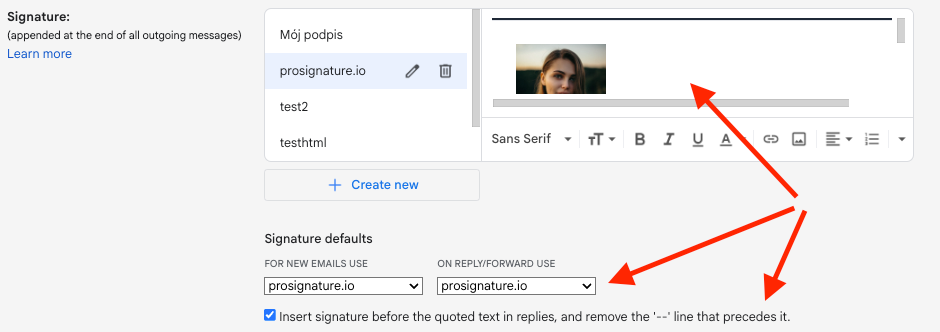
7. Paste the copied signature (right-click → Paste or Ctrl+V on Windows / Cmd+V on macOS). In Signature defaults, select the newly created signature. Optional: check “Insert signature before the quoted text”.
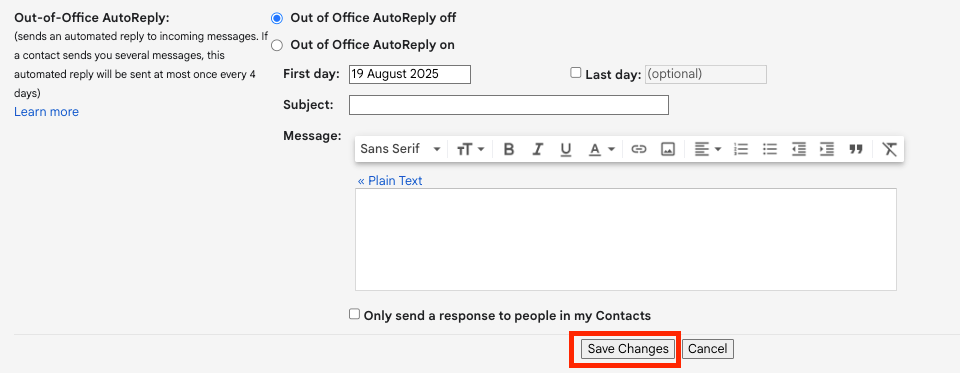
8. Scroll down and click “Save Changes”.
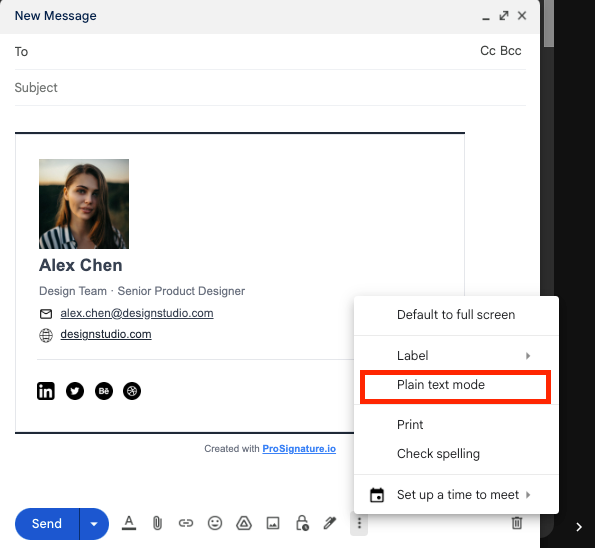
9. Compose a test message — your signature is ready. Make sure “Plain text mode” is off.